
Report Bug in Azure Board
Introduction
Integrating Azure Boards with ContextQA lets you automatically create, track, and manage issues discovered during your testing sessions. With this setup, you can quickly turn a failed test or bug into a fully detailed Azure Boards ticket—complete with synced information, attachments, and easy tracking—so your development workflow stays smooth and transparent.
Steps to Configure and Use Azure Boards Integration in ContextQA
Step 1: Configure Access in Azure DevOps.
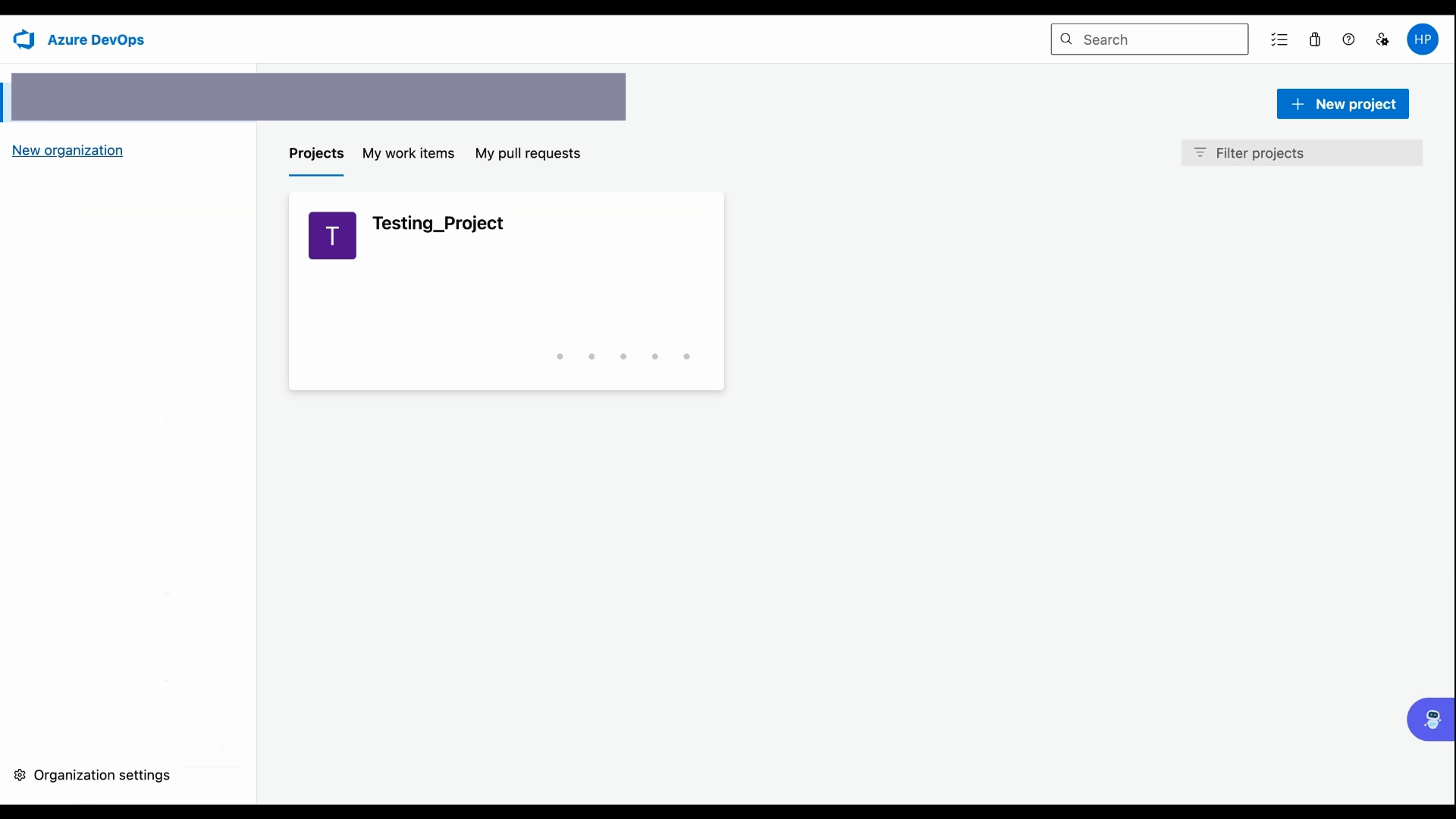
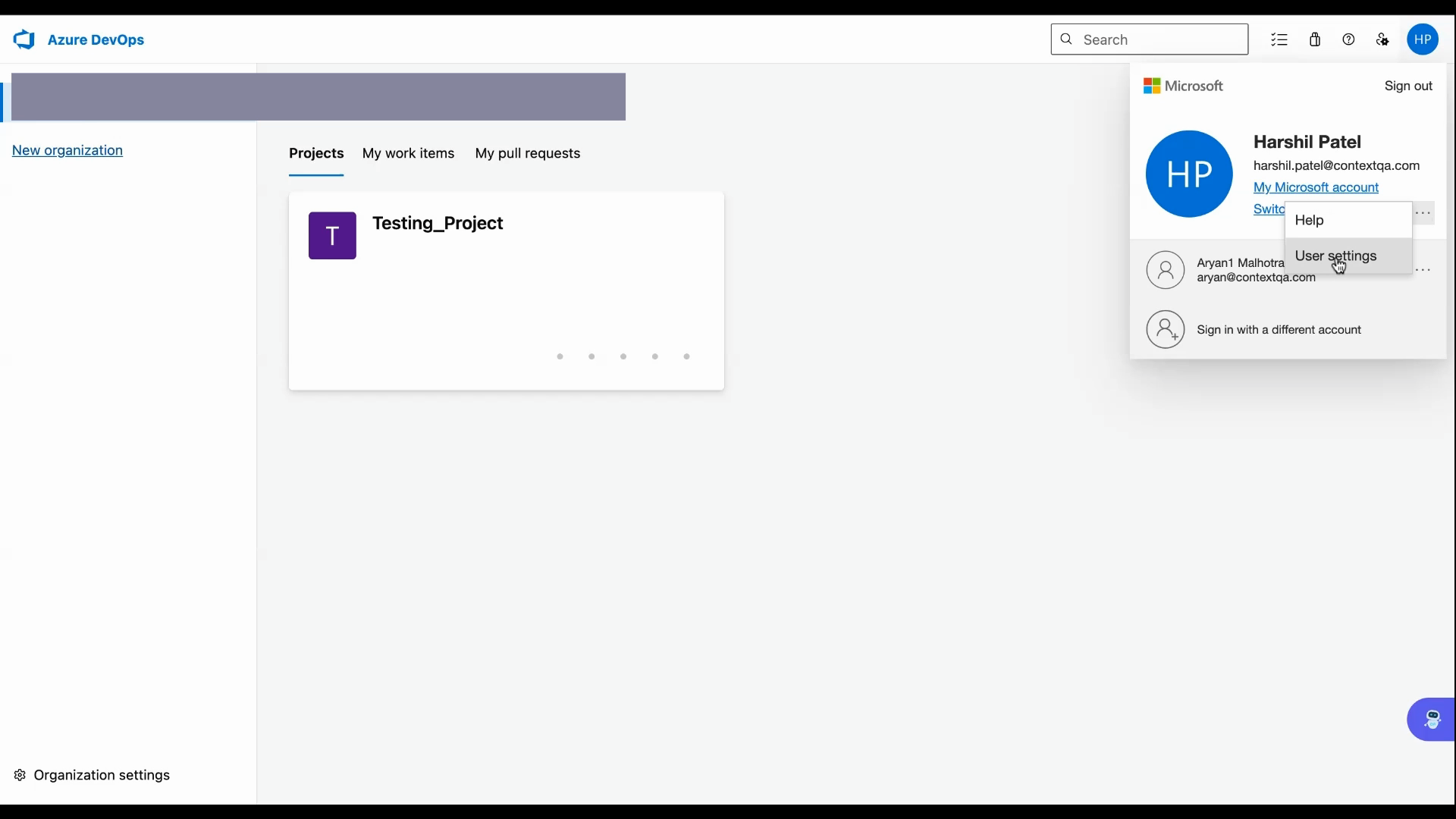
Open your Azure DevOps dashboard. Go to your profile menu, select the three dots, and then choose User settings.
Step 2: Generate a Personal Access Token.
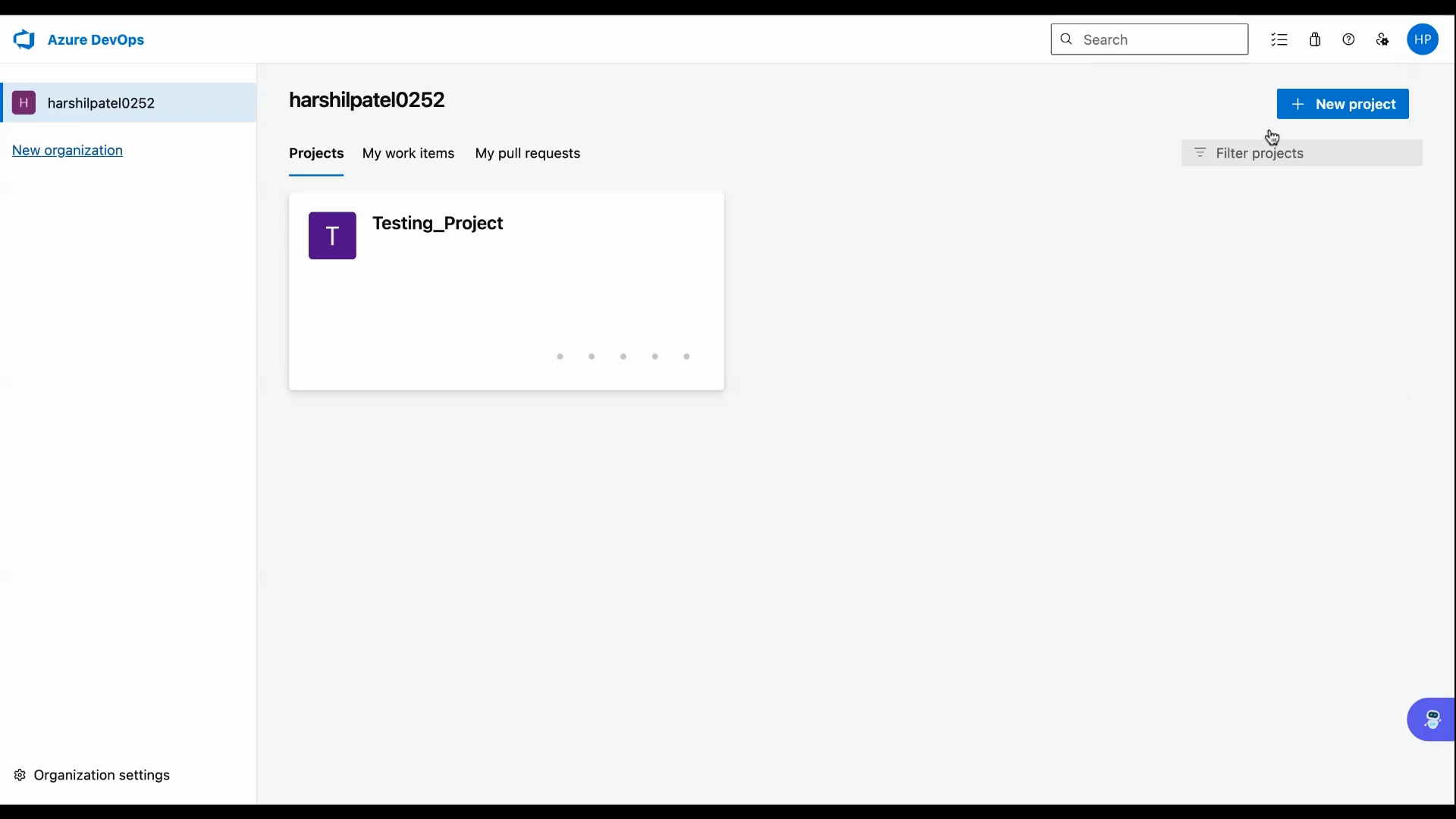
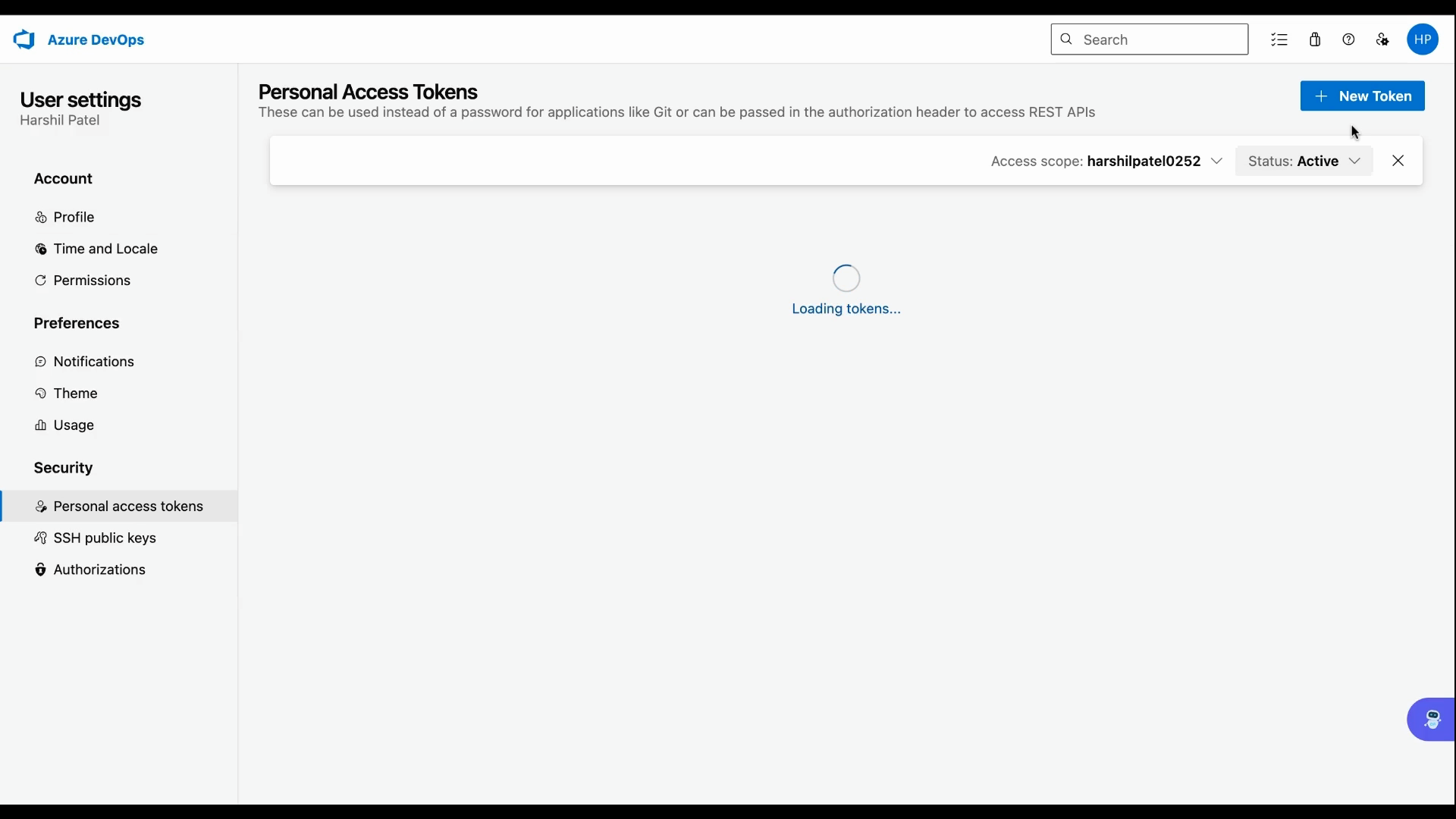
Select Profile, navigate to Personal access tokens, then click New token.
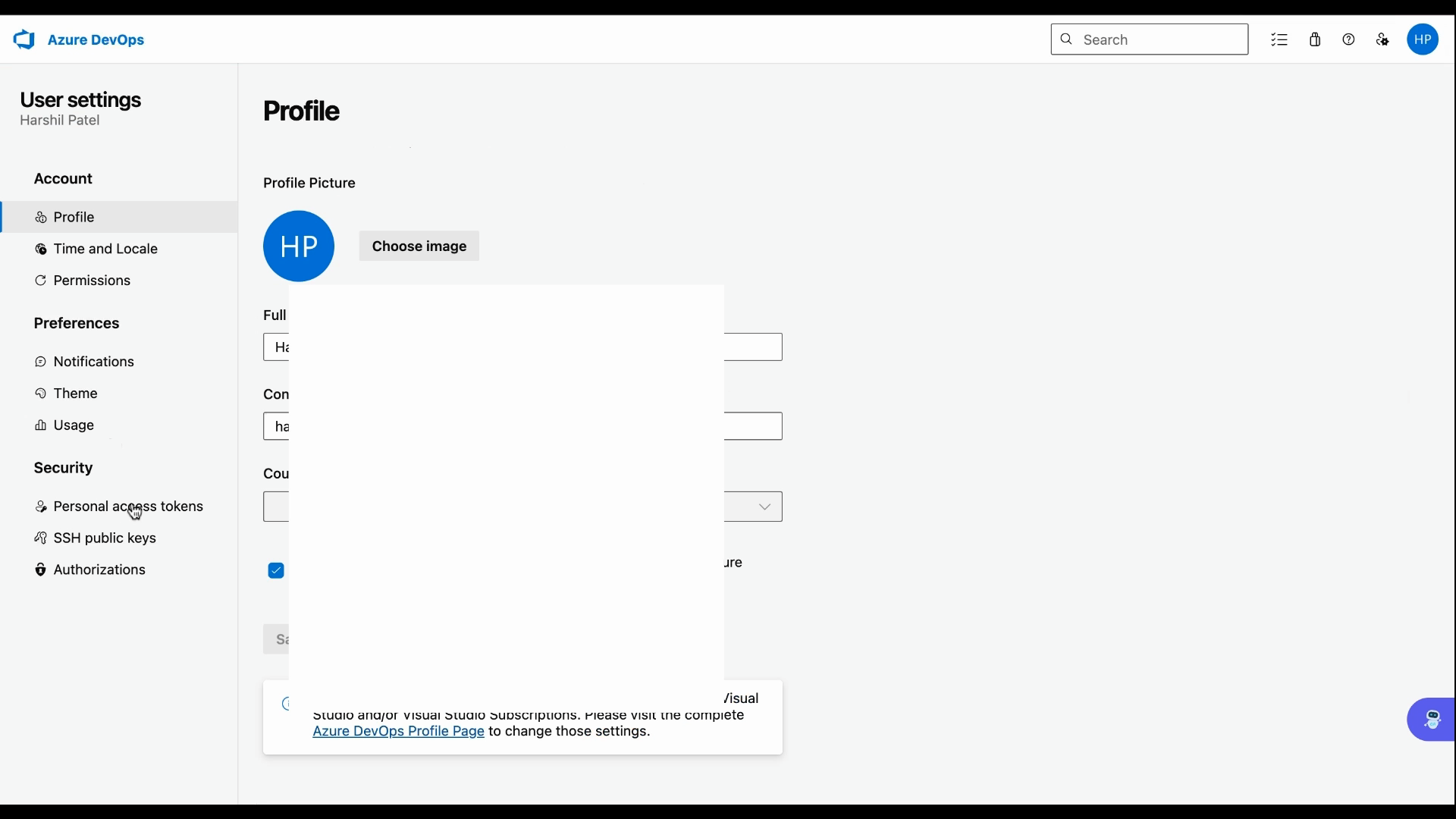
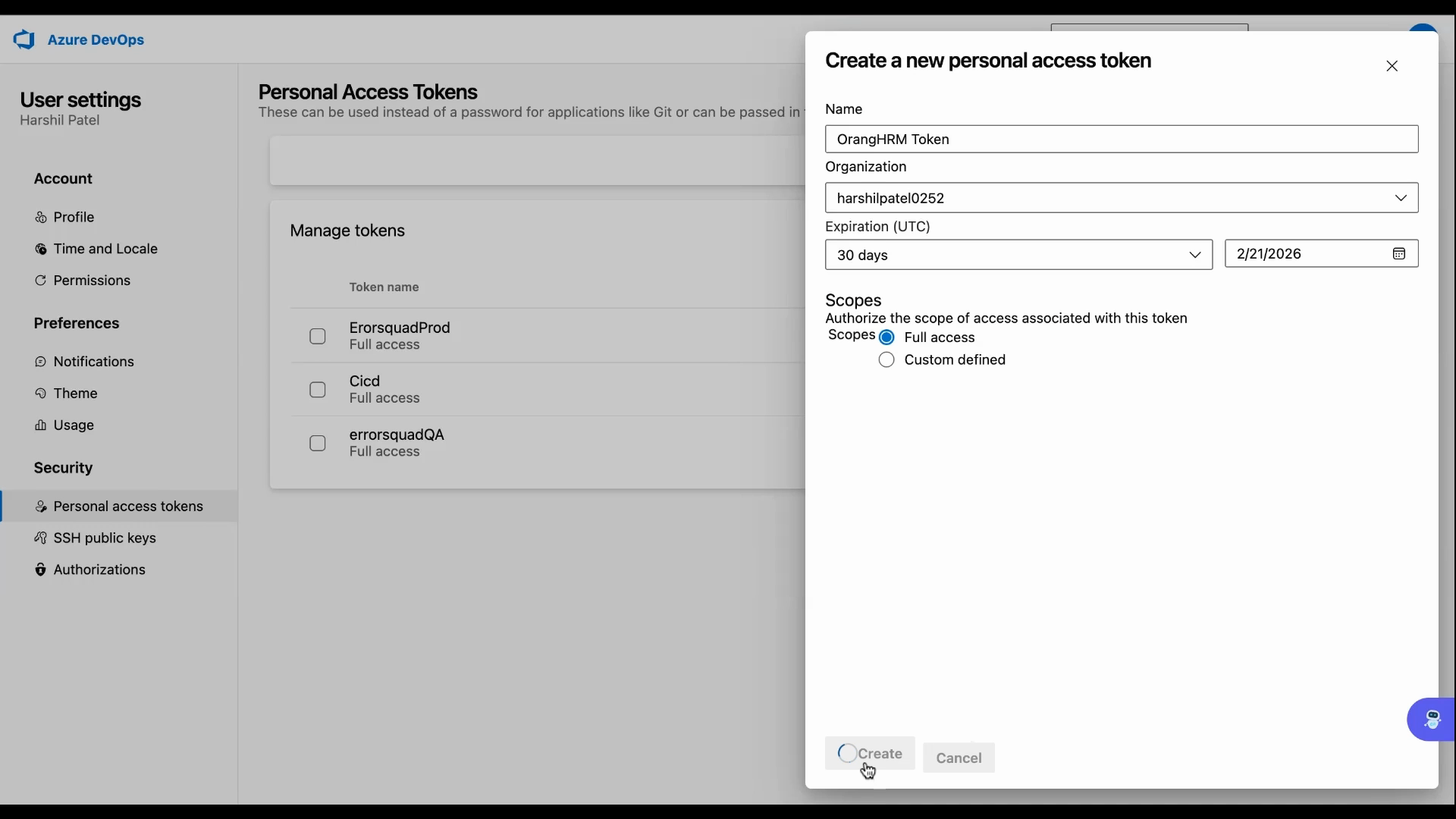
Give the token a clear name, set your desired permissions—choose full access or specify limited access according to your needs—then click Create.
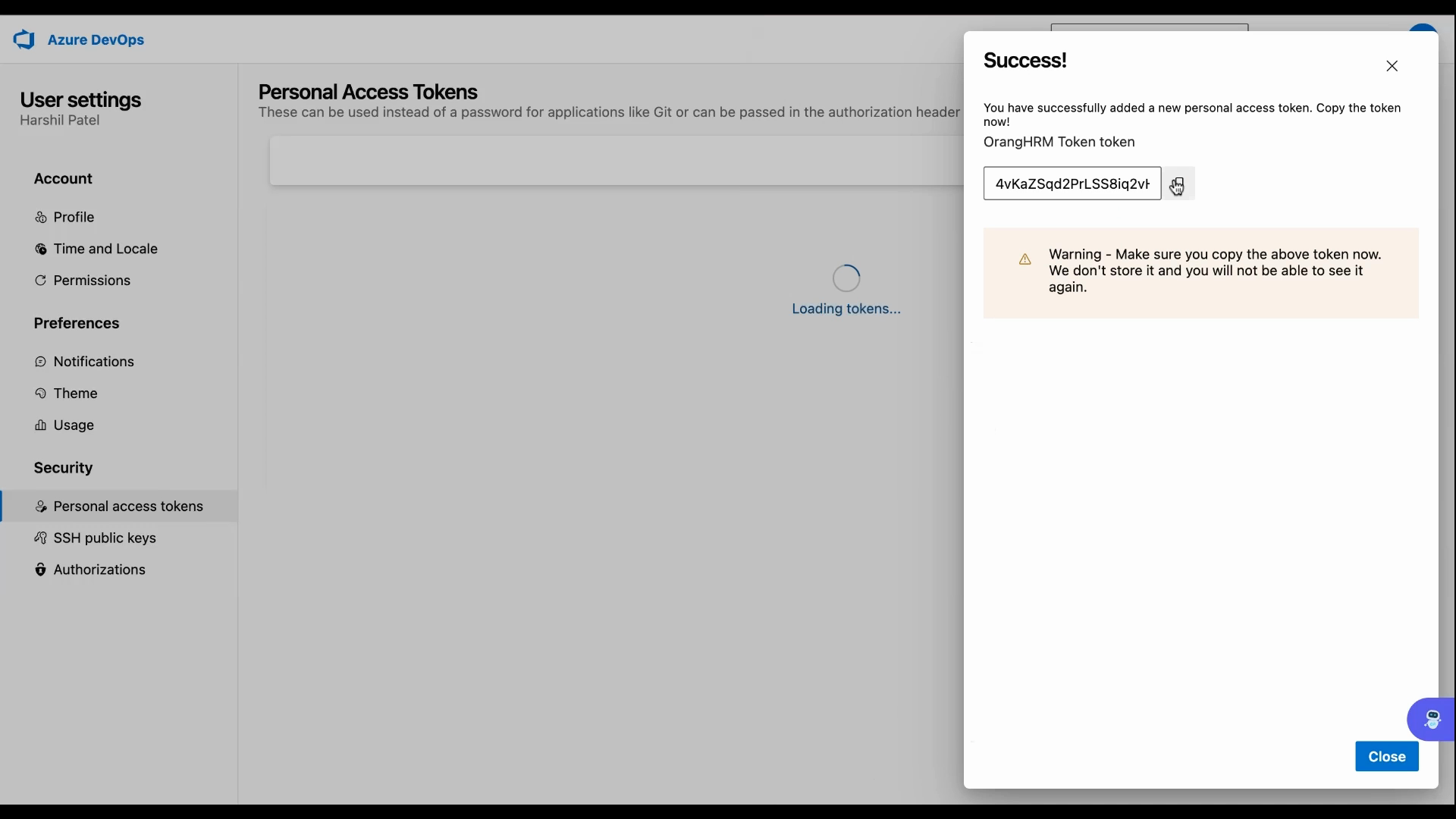
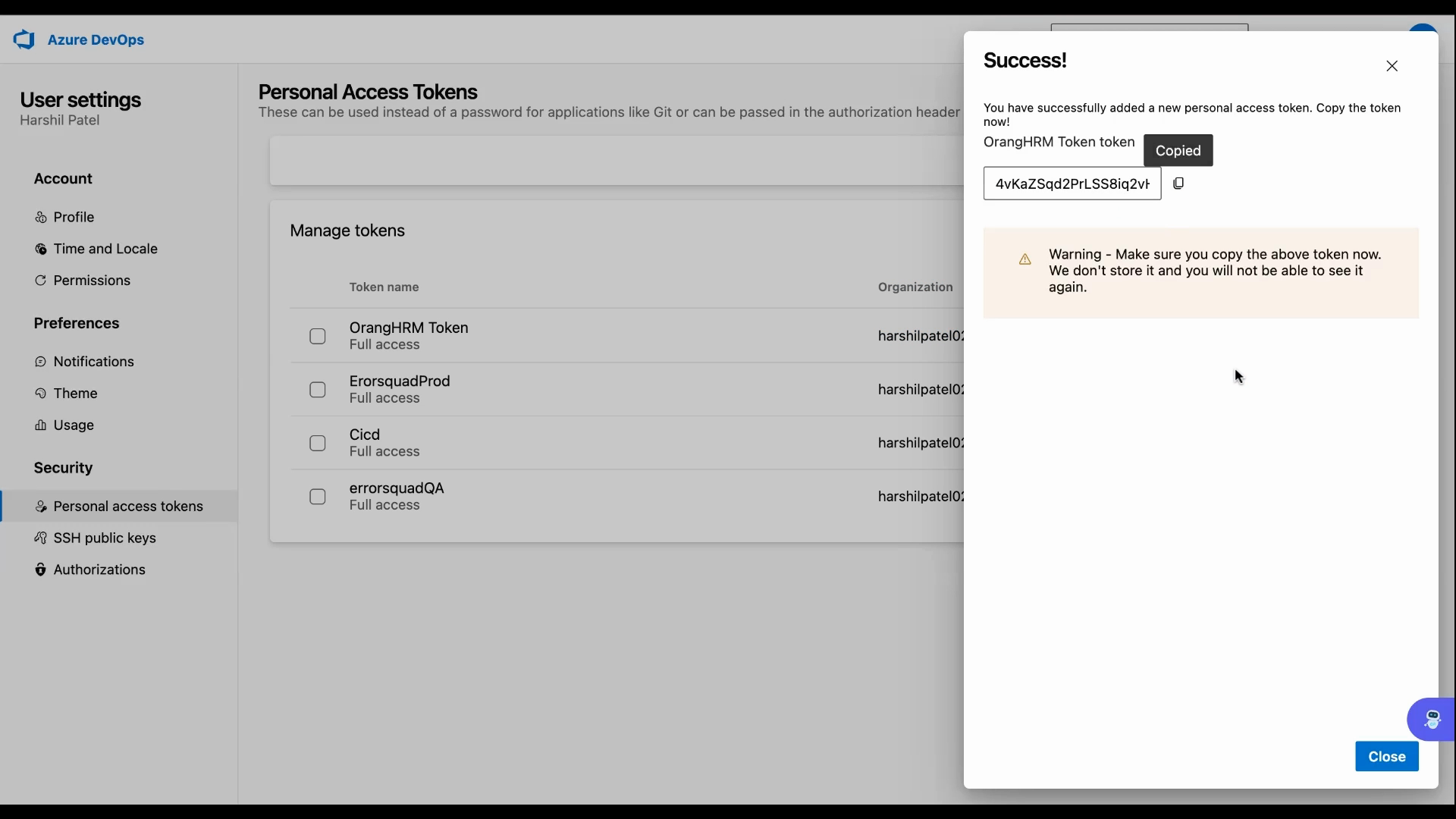
Step 3: Copy and Save the Access Token.
Once the token is created, copy it securely and close the token window.
Step 4: Enable Azure Boards Plugin in ContextQA.
Switch to the ContextQA platform. Click the Settings icon and go to the Plugin section.
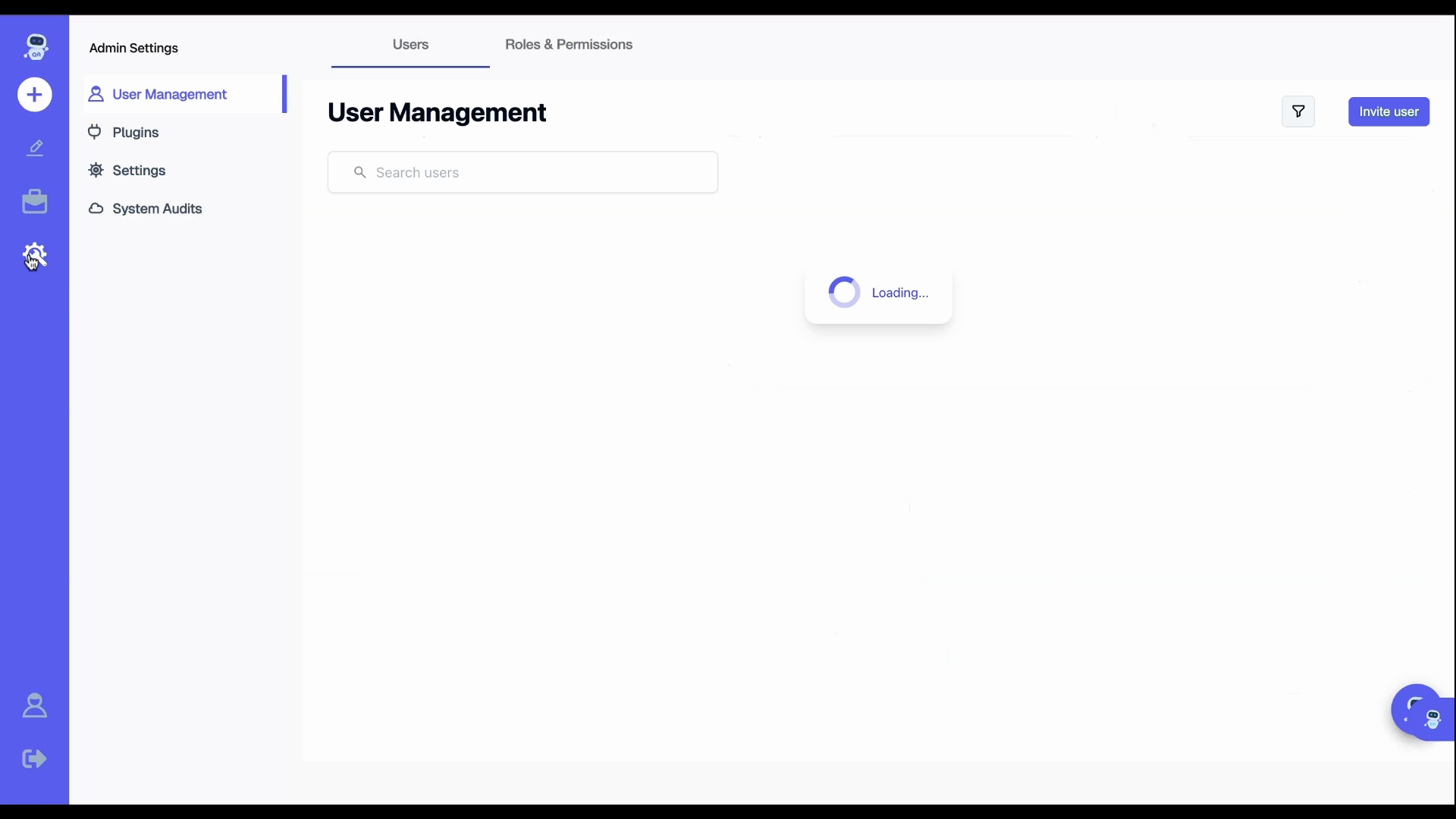

Find Azure DevOps board in the list and enable it.
Step 5: Enter Integration Details.
Paste your copied access key into the relevant field. Enter your Azure organization URL (copy this from your Azure portal), then click Create.
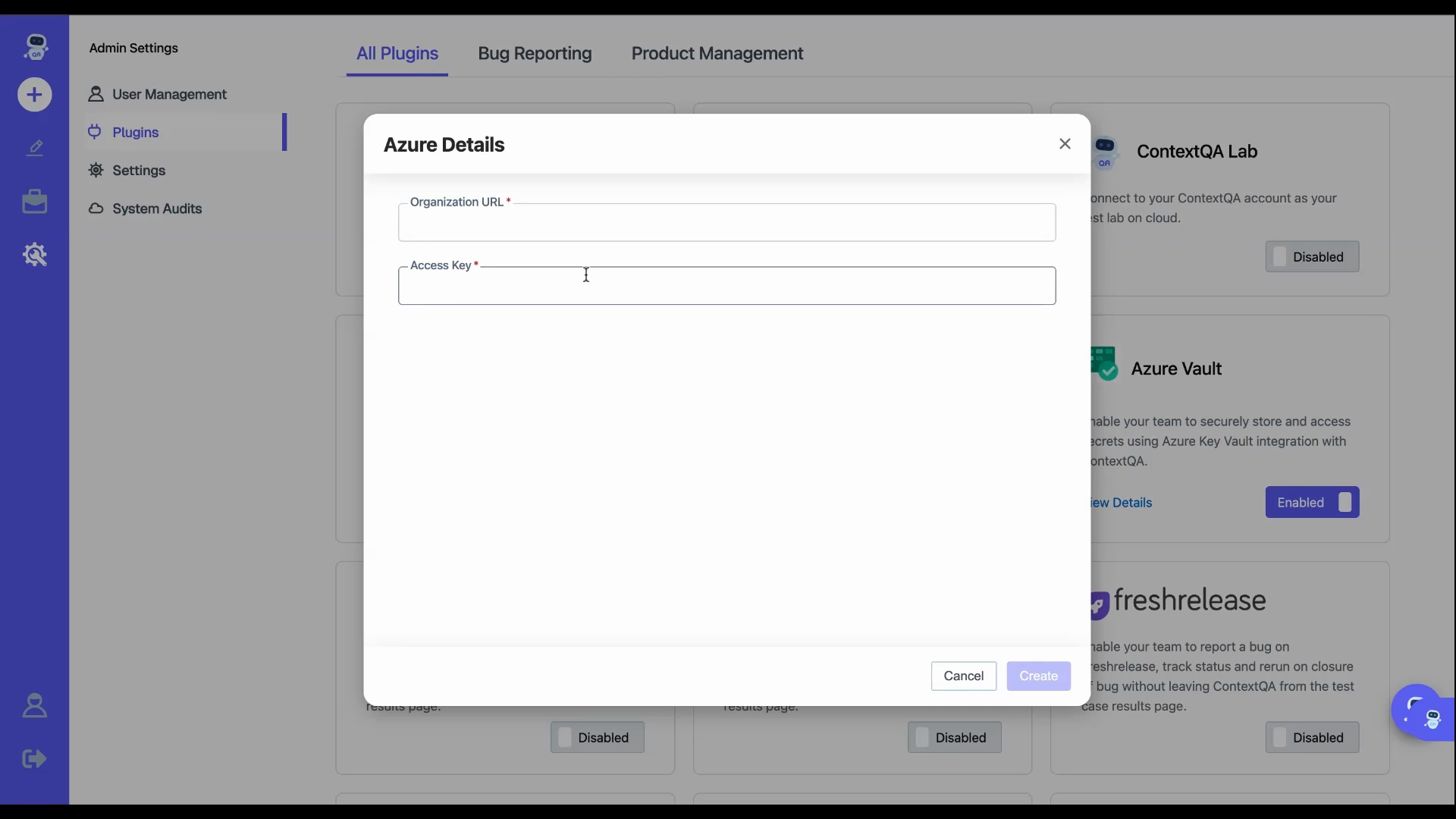
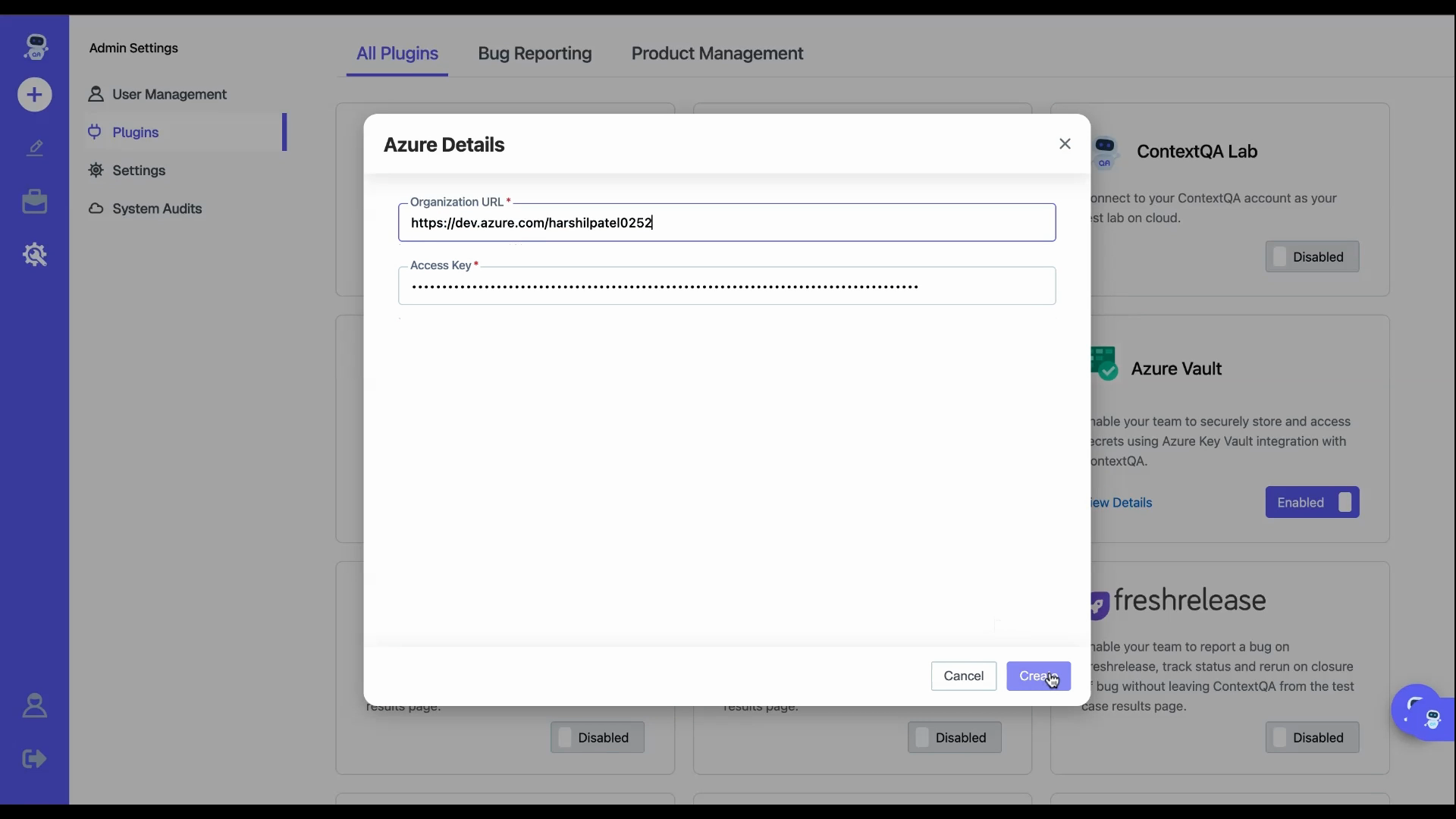
ContextQA will verify your details and confirm a successful integration. Now you’re ready to report issues directly to Azure Boards.
Steps to Report and Sync Bugs from ContextQA to Azure Boards
Step 1: Identify a Failed Test Case & Reporting a Bug.
During your testing, locate a test case that failed or revealed a bug. Select the failure to bring up detailed results and reporting options. Click the Report Bug option in your test result details.
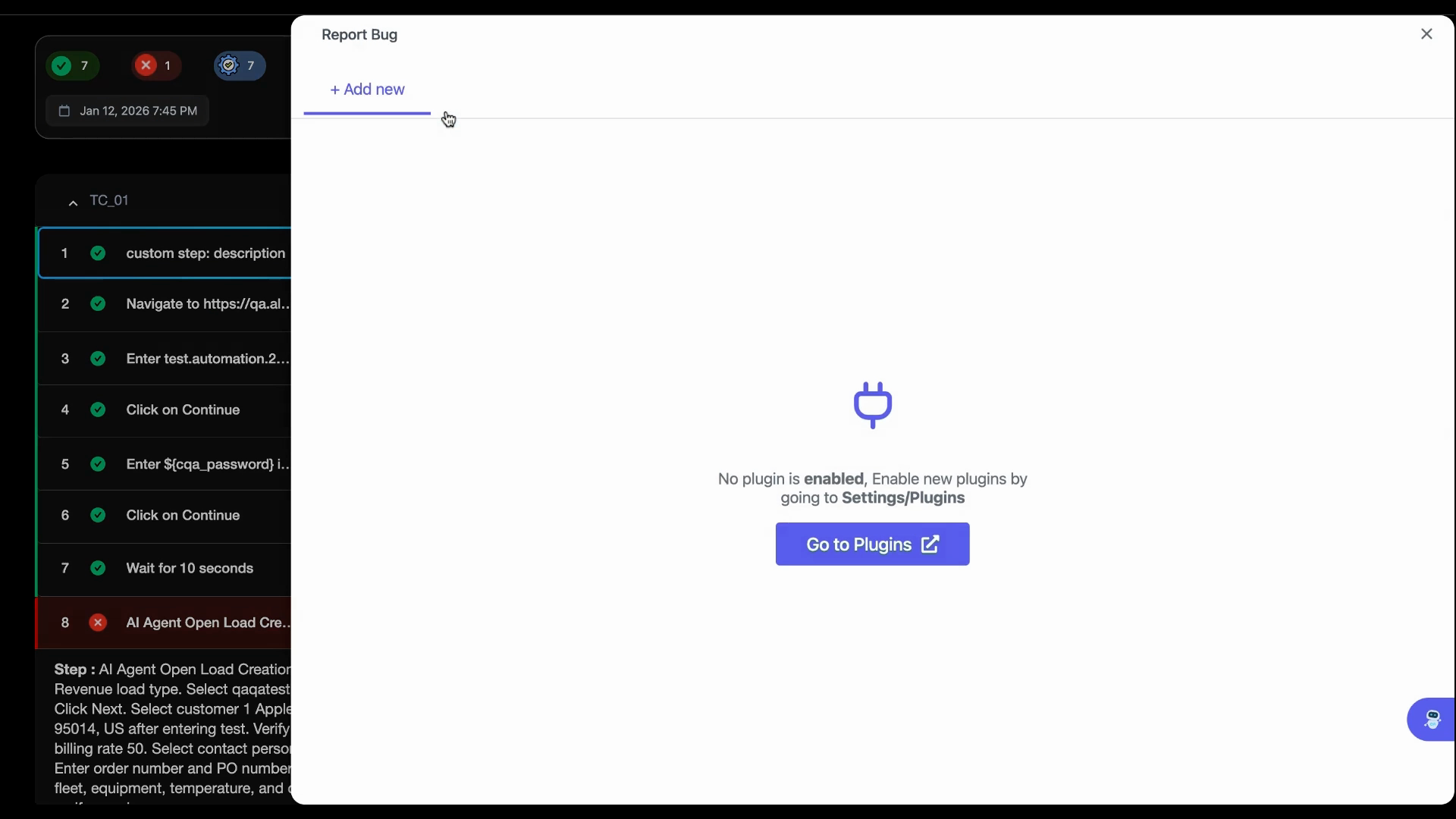
Step 2: Choose Azure Boards as the Bug Destination.
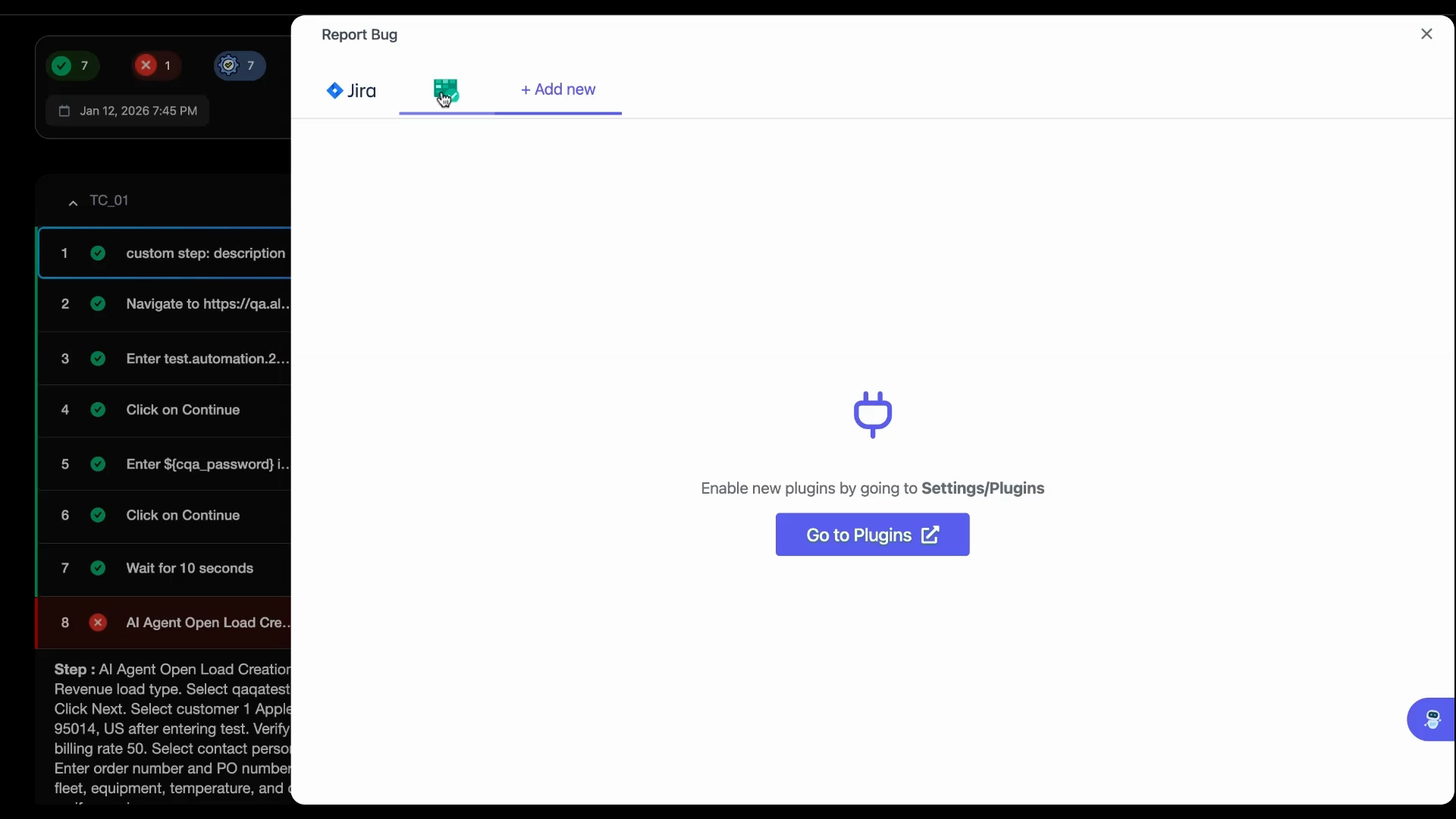
When prompted, select Azure Board from the list of possible integrations. This will launch the issue creation form connected to your Azure project.
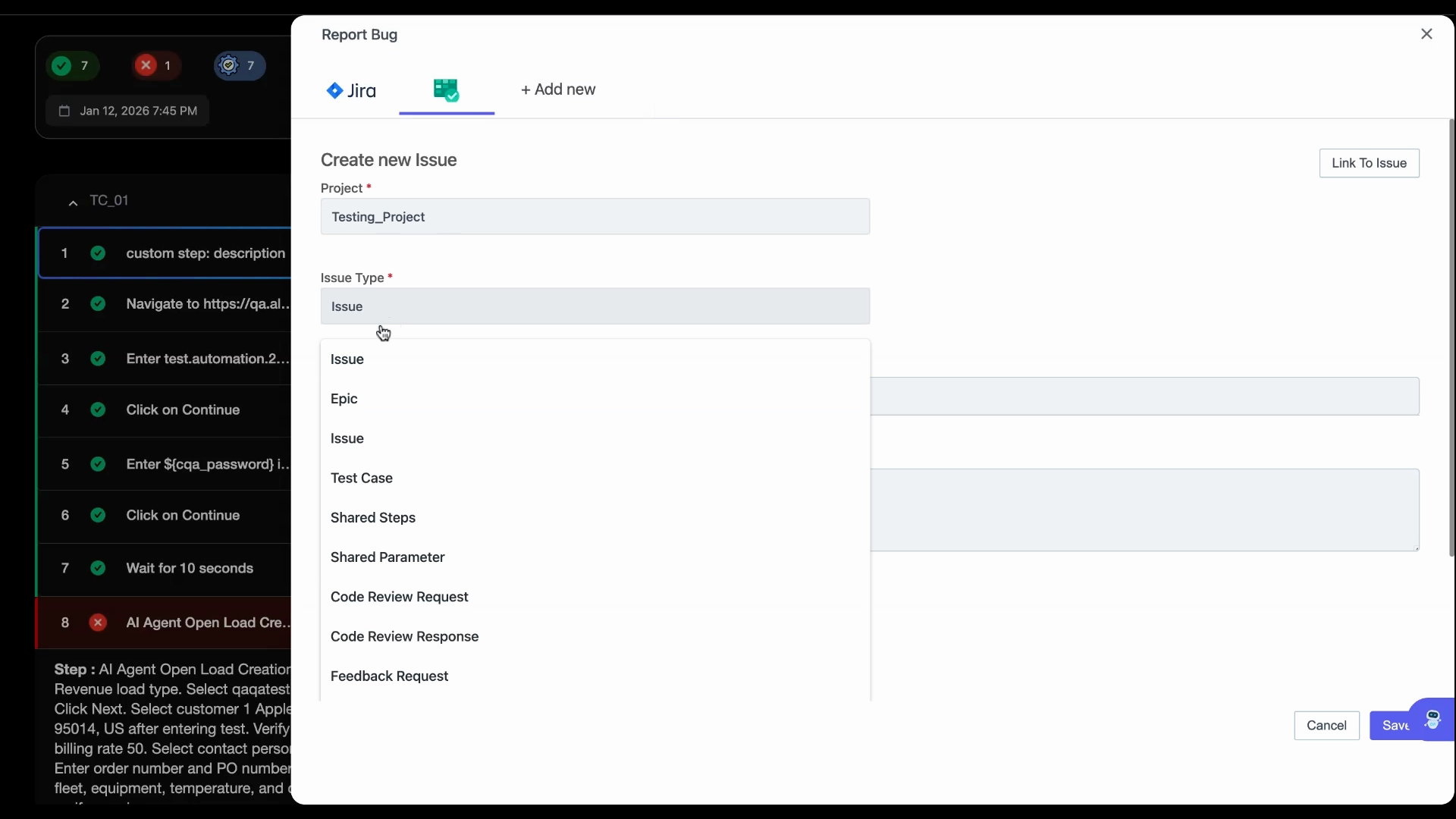
Step 3: Fill in Bug Details.
Select the appropriate issue type—like Test Case, Shared Step, or another category that fits your workflow.
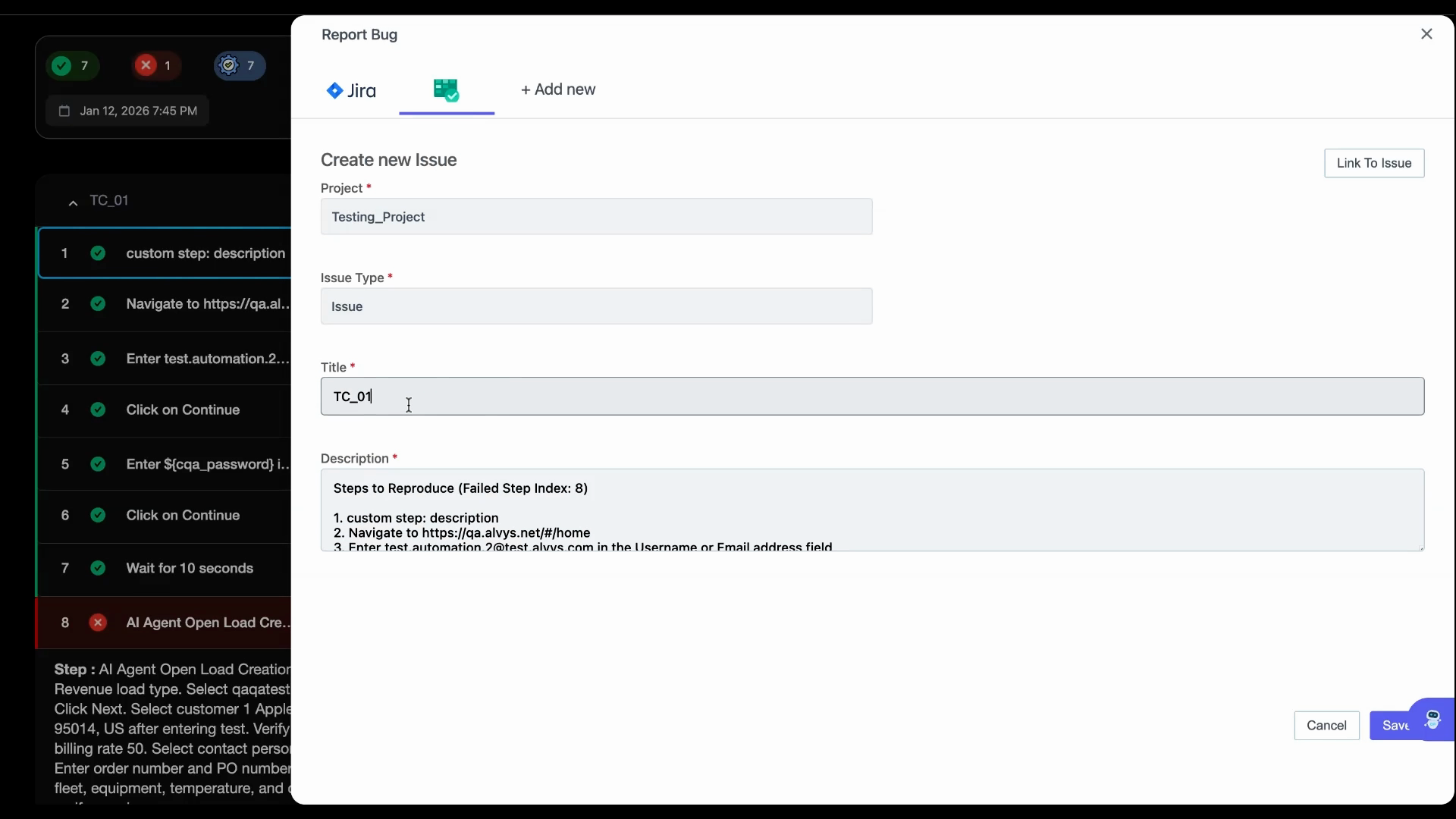
Enter a clear title. Notice that ContextQA automatically adds the test description and reproduction steps to save time and ensure context.
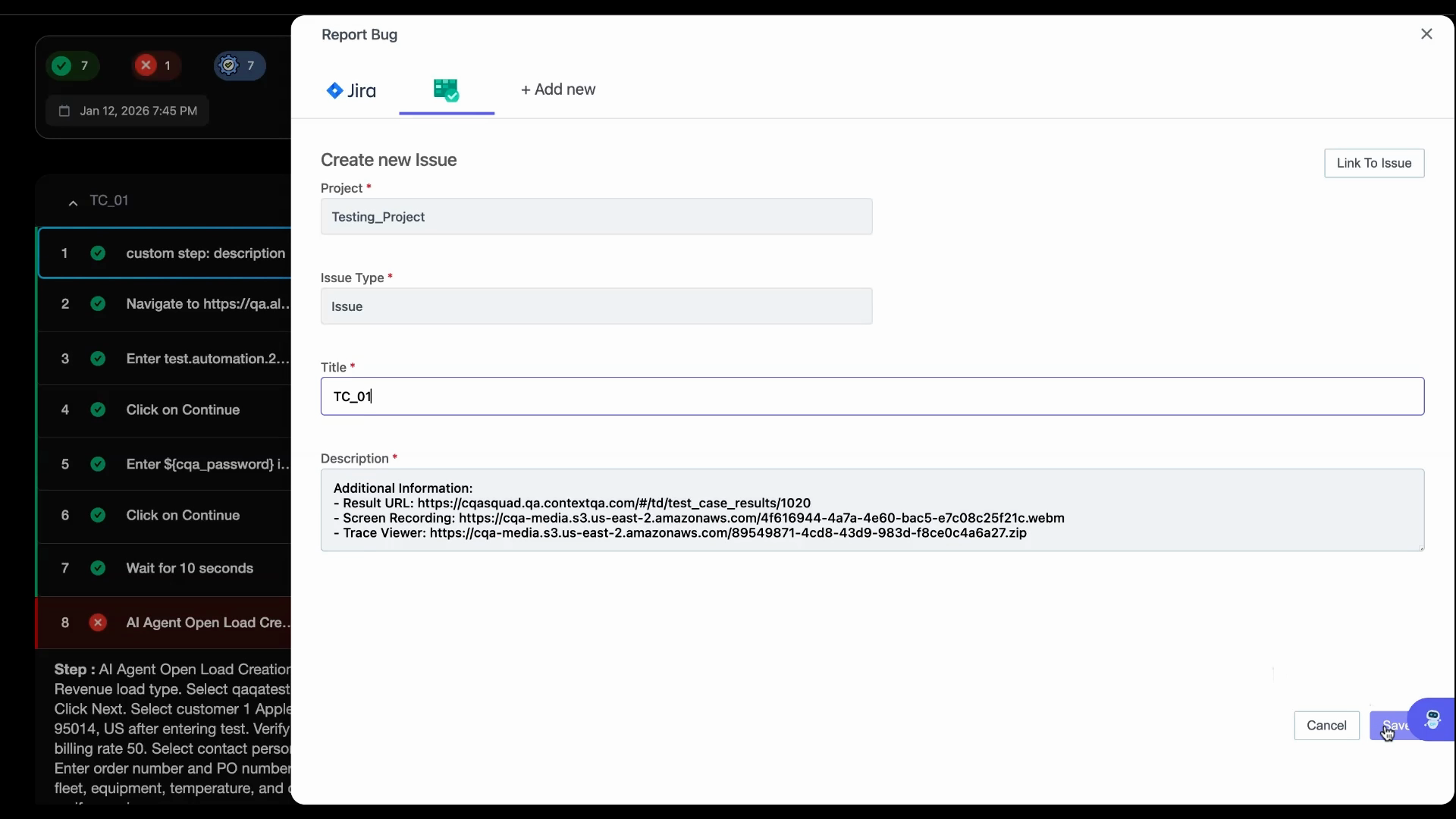
Step 4: Save and Sync the Issue.
Click Save to immediately create and sync the bug as a ticket in Azure Boards.
Step 5: Verify the Integration in Azure Boards.
After saving, a direct link appears. Click it to open Azure Boards and view your newly created ticket. The bug’s details, history, and any attached steps are all present.

Step 6: Track and Manage the Bug.
Work with your team in Azure Boards to assign, triage, or update the issue. Any future status changes made in Azure Boards can be referenced back in ContextQA through the same integration.
Conclusion
With this integration, reporting and tracking bugs from ContextQA to Azure Boards is seamless. Each issue includes vital context, test steps, and attachments, making it easy for your developers to reproduce and resolve problems. Set up and sync your workflow to reduce friction, ensure traceability, and keep your development and QA teams in sync.
Last updated